
Help
Timeline
Cut, arrange, title and export.
Everything generated anywhere else ends up here. Each project opens its own timeline, and New project creates one.
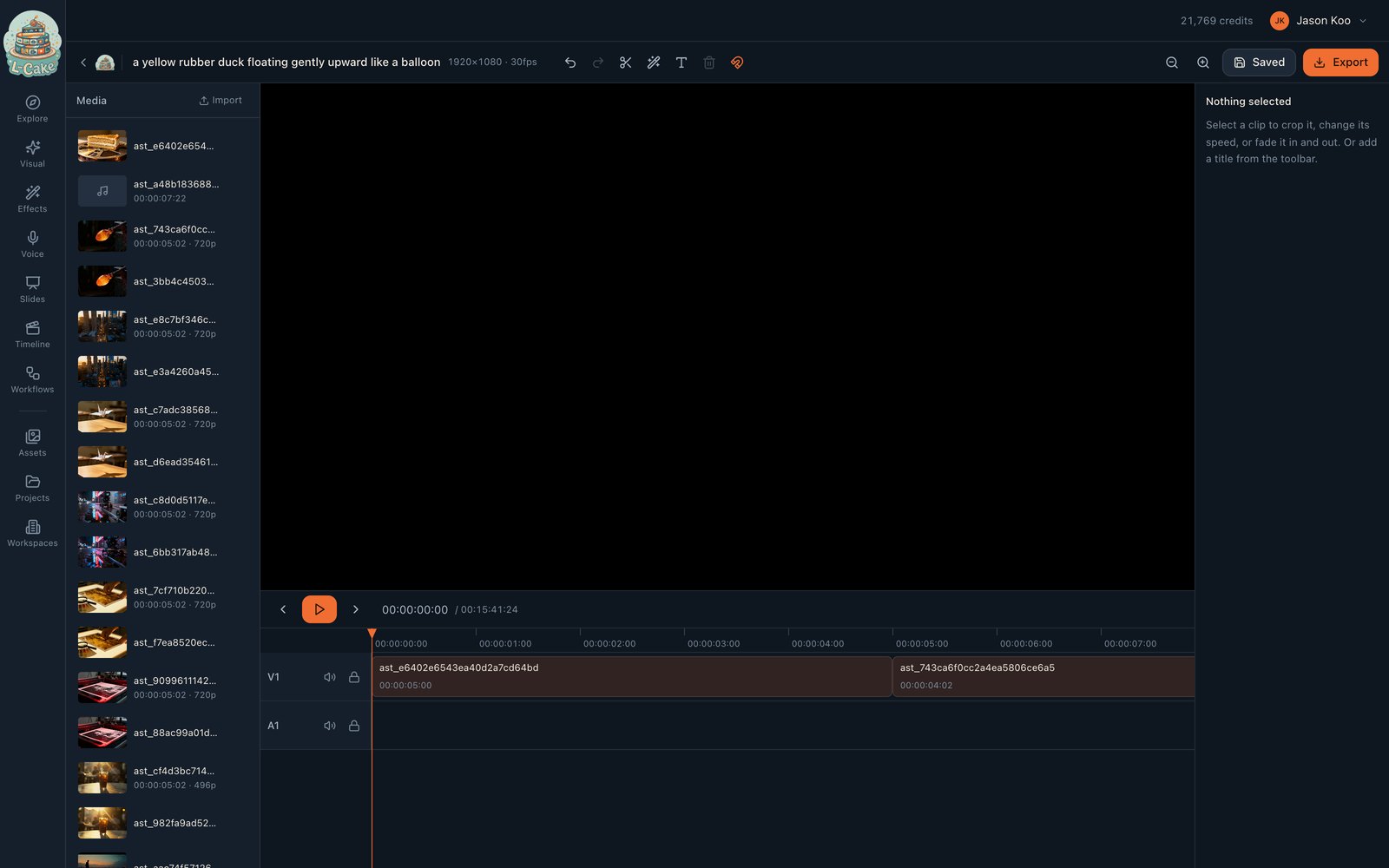
- Media
- Every asset in this workspace, plus Import for your own files
- Monitor
- Whatever is under the playhead
- Inspector
- Properties of the selected clip — crop, speed, fades
- Timeline
- Tracks, clips and the playhead. V1 is picture, A1 is sound
Building an edit
Start with Assemble everything
The wand in the toolbar lays every media item onto the timeline in order with dissolves between them. For a folder of generated clips that is usually ninety per cent of the edit, and it is the fastest way to see something actually play.
- 1
Get clips onto a track
Assemble everything, or drag from Media onto V1.
- 2
Cut where you want
Park the playhead and press S to razor. Select the part you do not want and delete it.
- 3
Add narration
Drop a clip generated in Voice onto A1 so it sits under the picture.
- 4
Title it
T adds a title at the playhead. Select it to set text and timing in the inspector.
- 5
Export
It compiles to an FFmpeg graph and renders on the server. Closing the tab does not cancel it.
Keyboard
Shortcuts are ignored while you are typing in a field.
Timing is in frames
All timing is integer frames, never floating-point seconds. Seconds accumulate drift and produce an edit that is a frame out by the end — which shows up as audio sliding away from picture over a long cut. The project’s frame rate is fixed when it is created and shown beside its name.
Saving
Saves are explicit and the button reports state. Every save appends a version parented to the current head, under a lock on the project — so concurrent saves, whether an autosave landing beside a manual one or two collaborators at once, cannot overwrite each other. In an editor a lost save is lost work.
You already paid for the clips
When something goes wrong
No clip under playhead
The playhead is past the end of the edit, or on a track with nothing on it.
The media panel is empty
This workspace has no assets yet — generate something first, or check which workspace you are in.
Export fails immediately
FFmpeg is not available on the server.
Export sits queued forever
The render worker is down.
A clip plays black
Its source asset is missing from storage.